
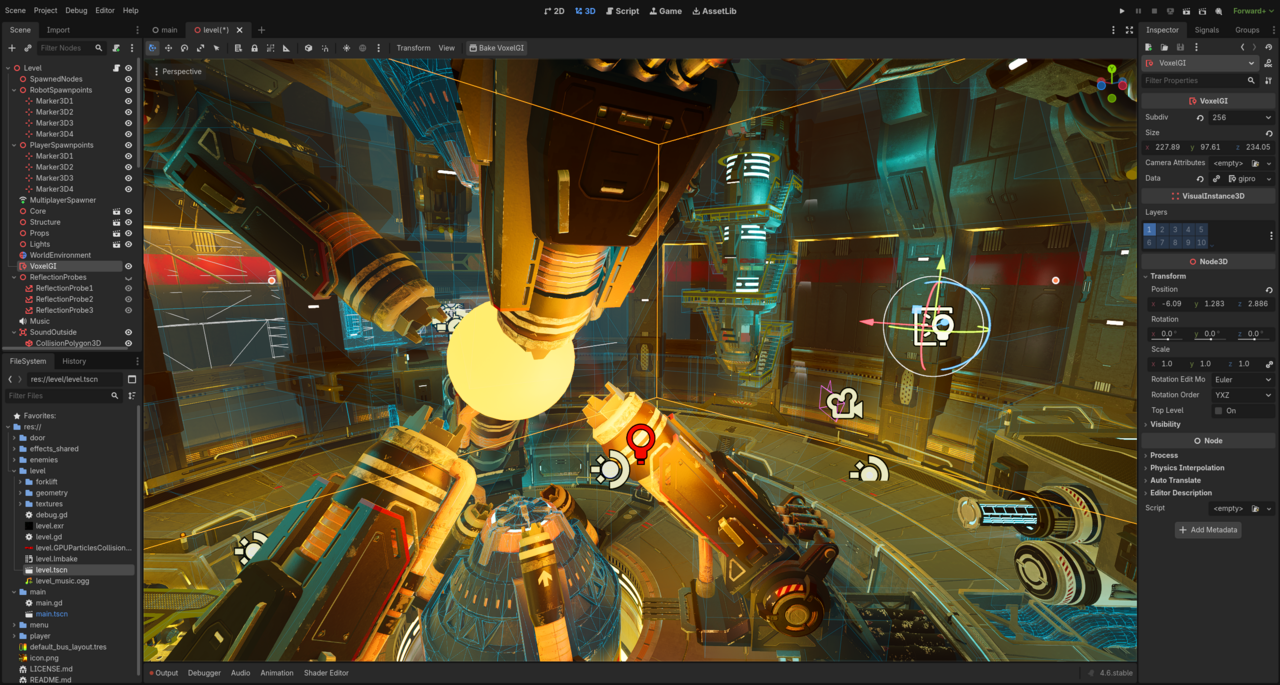
Godot is an open source game engine under the MIT licence, and it’s where most people we know start making games. The editor is a single small download, there’s no account to create, and its scripting language, GDScript, reads like Python. In this guide we’ll make a character that runs, jumps and lands. That’s the first evening of almost every platformer.
1. Set up the project
Download Godot 4 from the project’s website, start it, and create a new project. Choose the Compatibility or Forward+ renderer; for a 2D game either is fine.
Create a new scene with a Node2D as its root and call it Level. Save it as level.tscn.
2. The ground
Add a StaticBody2D to the level. Give it a CollisionShape2D with a RectangleShape2D, stretched wide and placed near the bottom of the screen. Add a ColorRect of the same size so you can see it. Static bodies don’t move, but other bodies collide with them.
3. The player
Create another scene with a CharacterBody2D root called Player. Give it:
- a CollisionShape2D with a CapsuleShape2D
- a Sprite2D (the Godot icon,
icon.svg, will do for now) - a Camera2D, so the view follows the player
Attach a new script to Player and replace its contents with this:
extends CharacterBody2D

const SPEED = 220.0
const JUMP_VELOCITY = -420.0

var gravity: float = ProjectSettings.get_setting("physics/2d/default_gravity")

func _physics_process(delta: float) -> void:
	if not is_on_floor():
		velocity.y += gravity * delta

	if Input.is_action_just_pressed("ui_accept") and is_on_floor():
		velocity.y = JUMP_VELOCITY

	var direction := Input.get_axis("ui_left", "ui_right")
	if direction:
		velocity.x = direction * SPEED
	else:
		velocity.x = move_toward(velocity.x, 0, SPEED)

	move_and_slide()
Every physics frame, this pulls the player down unless they’re on the floor, jumps when you press space or enter (the built-in ui_accept action), moves left and right with the arrow keys, and lets move_and_slide() handle collisions.
4. Put them together
Back in level.tscn, drag player.tscn into the scene above the ground, set level.tscn as the main scene in Project Settings → Application → Run, and press F5. You should be able to run and jump.
5. Make it feel good
The difference between a platformer that feels floaty and one that feels crisp is a handful of small tricks. Try these next:
- Variable jump height: if the player releases jump while still rising, cut
velocity.yin half. - Coyote time: allow a jump for a tenth of a second after walking off a ledge.
- Jump buffering: remember a jump pressed just before landing, and do it on landing.
- Acceleration: use
move_towardtowards the target speed, rather than setting it at once.
Next time we’ll add a tilemap, collectibles and a goal. Until then, the official Godot documentation’s “Your first 2D game” tutorial is excellent, and free like everything else here.



Leave a Reply